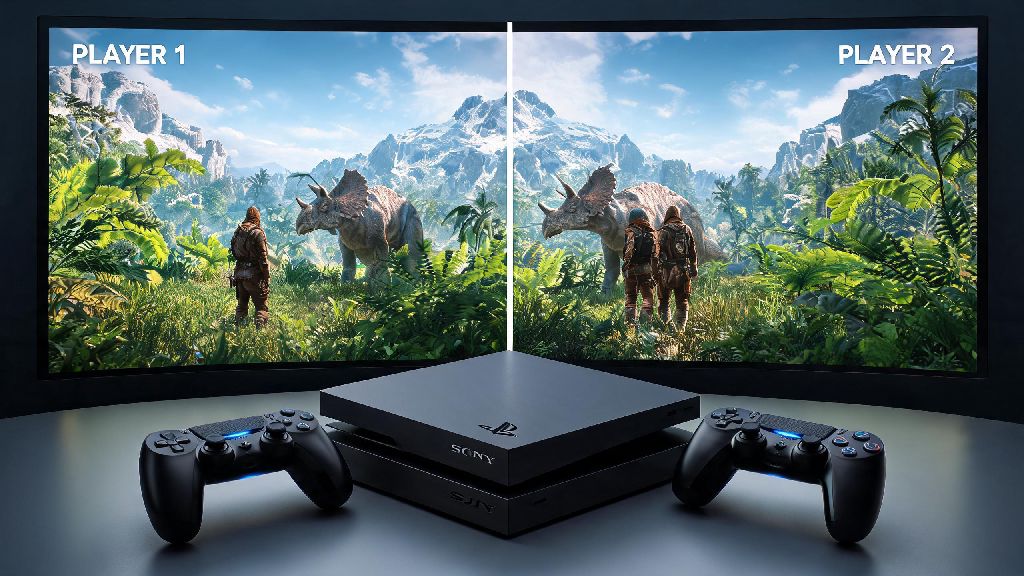
There’s nothing better than taking on Ark’s brutal dinosaur-infested wilderness with a friend by your side, and if you’re looking for how to play ark 2 player ps4, you’ve come to the right place. I’ve spent dozens of hours testing both local and online co-op setups for Ark on PS4, and I’ve broken down every step, plus common fixes for issues that pop up when you’re trying to team up. We’ll cover everything from split-screen setup to online party settings, plus tips to make your shared playthrough way less frustrating than my first attempt, where my partner accidentally let a T-Rex eat all our stored berries 10 minutes in. You don’t need any special hardware or upgrades to get started, just a PS4, at least one copy of Ark, and a friend ready to brave the wilds with you.
How to Play Ark 2 Player on PS4: Local Split-Screen Setup Steps
Local split-screen is perfect if you’re playing with someone in the same room, and it takes less than two minutes to set up if you follow these steps. First, launch Ark on your main PS4 profile, and load your existing single-player save or start a new one. You don’t need to adjust any settings before launching the game, the split-screen prompt will pop up automatically once the second controller is connected.
Make sure you have two PSN accounts linked to your console first if you want both players to save progress. Once you’re spawned into your world, turn on the second PS4 controller, press the Options button, and select the second player’s PSN profile when prompted. If you use a guest profile for the second player, their character progress won’t save when you close the game, so stick to registered accounts for longer playthroughs.
The screen will split vertically by default once the second player loads in, and they will spawn right next to your character. You can change split-screen orientation to horizontal in the game’s display settings if you prefer that layout, especially if you have a wider TV. You might notice a small drop in frame rate when you first launch split-screen, especially if you’re playing in a busy area with lots of dinosaurs or building structures. That’s normal for PS4, as the console is rendering two separate views at once, so don’t panic if it feels a little slower than single player. If the frame drops get too bad, turn down the view distance in the settings menu, that will free up processing power for smoother gameplay.
Setting Up Online 2 Player Co-Op for Ark on PS4
If your friend is playing from a different location, online 2 player co-op is the way to go, and the setup process is just as straightforward as split-screen, as long as you have the right subscriptions. Confirm both you and your friend have active PS Plus subscriptions before starting – that’s the most common mistake people make when setting up online co-op, since PS4 requires PS Plus for all online multiplayer sessions.
To start an online session, the host should load their existing single-player save, open the pause menu, navigate to the Invite Friends tab, and select the friend they want to play with. Once the friend accepts the invite, they will load into your world within a minute or two, depending on your internet speed. If you want your session to be private so no random players can join, go to the session settings before launching your save and set “Public Session” to off. I once forgot to do this and had a random player show up and steal all our metal ingots, so don’t skip that step.
If your friend can’t find your invite, make sure both of you have your PSN privacy settings set to allow game invites from friends. I once spent 20 minutes trying to send an invite to my friend, only to realize he had his PSN set to block all incoming invites for a different game he was playing earlier. If you want to play on a dedicated server instead of a player-hosted session, you can search for public or private servers from the main menu, but note that most servers have their own rules and progression wipes, so your single player save won’t carry over. If you’re used to single player Ark, you’ll notice that 2 player sessions on PS4 have slightly higher spawn rates for resources, to account for two players gathering at the same time.
Essential Tips for Smooth 2 Player Ark Gameplay on PS4
Once you have your co-op session set up, these tips will help you survive longer and progress faster than going it alone. Assign clear roles to each player early on to avoid wasted effort, especially during the first few in-game days when you’re still building your first base and gathering basic resources. You don’t have to stick to these roles forever, but they will help you get set up much faster than if both of you are running around doing random tasks.
Always share your map markers with your co-op partner – you can do this by opening the map, pressing the square button to place a marker, and selecting the option to share it with all party members. That way you won’t lose each other if you split up to explore, and you can mark dangerous areas like T-Rex spawns or rich resource veins. Don’t build your first base too close to a high-level predator spawn point – I learned this the hard way when a pack of raptors destroyed our first thatch hut 20 minutes into our first 2 player playthrough, and we lost all our starting gear. Make sure you both agree on a base location before you start building, I’ve had multiple playthroughs derailed because I wanted to build near the ocean for easy fishing, and my partner wanted to build in the mountains for better metal access. Compromise early to avoid unnecessary arguments.
Common 2 Player Ark PS4 Issues and Quick Fixes
Even if you follow all the setup steps perfectly, you might run into a few common glitches that are specific to the PS4 version of Ark. The most frequent issue people report is the second player not being detected for split-screen sessions. Restart both the game and your PS4 console first – 9 times out of 10, this fixes the glitch where the second controller isn’t recognized. If that doesn’t work, check that both controllers are fully charged and paired to your PS4 properly, and that you’re not using a third-party controller that isn’t compatible with the game.
Another common issue is online co-op sessions disconnecting mid-game. The easiest fix for this is to make sure the host uses a wired internet connection instead of Wi-Fi, as wireless connections are far more likely to have lag spikes and dropouts. You can also ask the host to close any other background apps on their PS4, like streaming services or other games, that will free up bandwidth and processing power for the Ark session. If you’re having issues with frame drops during 2 player Ark on PS4, try turning off the “Motion Blur” and “Depth of Field” settings in the display menu, that will boost performance significantly.
Many players also report that the second player’s UI is too small in split-screen mode, making it hard to read health bars or item descriptions. You can fix this by going to the accessibility settings and increasing the UI scale for both players, that will make text and icons easier to read without taking up too much of the screen. If your second player’s progress isn’t saving in local split-screen, double check that they’re logged into a registered PSN account, not a guest account. Guest accounts don’t store save data for Ark, so all their character progress will be erased when you close the game.
Playing Ark with a friend turns a grueling survival experience into a fun, shared adventure, and now you know exactly how to play ark 2 player ps4 without the frustrating setup issues that ruin so many first co-op attempts. Take the time to test both split-screen and online setups to see which works better for you, and don’t be afraid to adjust your roles or base plans as you unlock new engrams and tame bigger dinosaurs. I’ve logged over 200 hours of 2 player Ark on PS4 with my roommate, and some of my favorite gaming memories come from random moments like us accidentally taming a max-level T-Rex after we got lost chasing a parasaur. If you run into a problem we didn’t cover, drop a note in the comments and I’ll help you troubleshoot it.