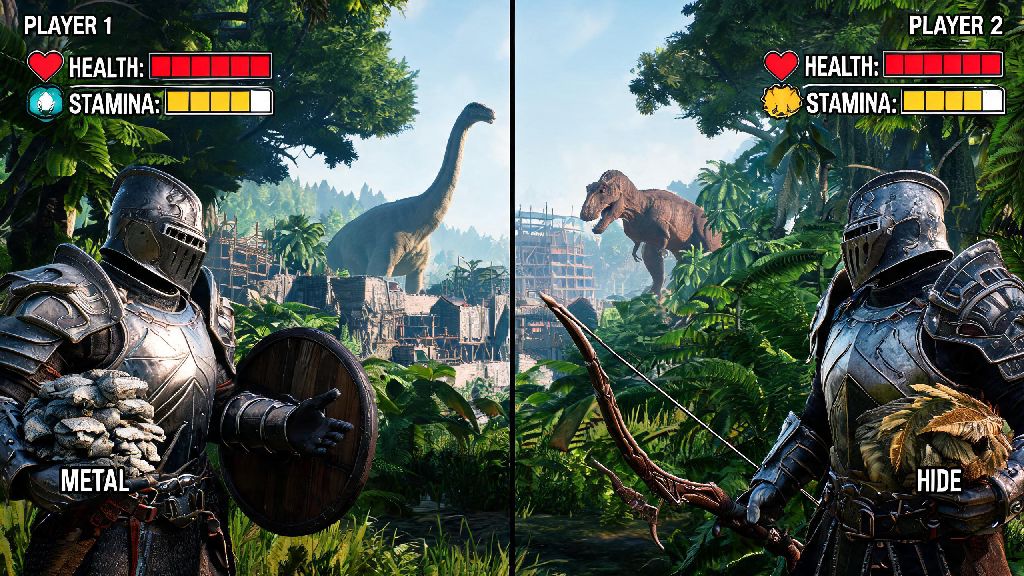
If you’ve ever wanted to team up to take down a T-Rex, build a fortified base, or explore the dangerous biomes of Ark with a friend sitting right next to you, learning how to play 2 player Ark PS4 is way simpler than you might think. I’ve spent dozens of hours running split-screen co-op with my little brother, and I’ve worked through all the weird bugs, setting glitches, and balance issues so you don’t have to. This guide walks you through every step of setup, plus tips to make your co-op sessions run smoothly and stay fun for both players.
How to Play 2 Player Ark PS4: Full Local Split-Screen Setup
First, make sure both you and your second player have separate PSN accounts linked to your console. You don’t need a PlayStation Plus subscription for local co-op, which is a huge bonus if you don’t pay for the service. Start by launching Ark on your main account, and load into the single-player save you want to use for co-op, or start a brand new save if you want to play from scratch together. Wait for the world to fully load in before doing anything else, or you might run into crashes when adding the second player.
Once you’re loaded in, grab the second PS4 controller and press the Options button on it. A pop-up will appear asking which account you want to use for the second player – select their linked PSN account, or use a guest account if they don’t have their own. You’ll see a short loading screen, and then the screen will split vertically, with the first player on the left and the second on the right. If you prefer a horizontal split, you can adjust that later in the settings menu.
One thing I always note here is that you can’t use a single account for both players. Many new players try to do this and get stuck on a loading loop, so make sure you have two separate accounts set up on your console before you start. You also want to make sure your PS4 has at least 10GB of free storage space for temporary save files, as co-op saves tend to be slightly larger than single-player ones.
Key Settings to Adjust Before Starting Your Co-op Session
Default split-screen settings for Ark on PS4 are rarely optimized for smooth play, so spending 5 minutes adjusting these before you start exploring will save you a ton of frustration later. The first setting you want to change is the split-screen orientation. Head to the main settings menu, select "Video", and toggle between vertical and horizontal split to see what works best for your TV size. I prefer horizontal split for 32-inch or smaller TVs, as it gives each player more horizontal screen space to spot approaching threats.
Next, lower your graphics settings slightly to boost frame rate. Ark is a notoriously unoptimized game, and split-screen play puts extra strain on your PS4’s hardware. Lower the view distance to medium, turn off shadow effects, and disable motion blur to keep your frame rate above 30fps for most areas. If you’re playing on a PS4 Pro, you can keep most settings on high, but you’ll still want to turn off anti-aliasing to avoid stuttering when you’re in busy areas with lots of dinosaurs.
You also want to adjust the player tether distance if you’re playing on a non-dedicated server (which you are for local 2 player play). The default tether only lets the second player get around 200 meters away from the host before they’re pulled back, which gets annoying fast when you’re gathering resources in different areas. Head to the "Game" settings menu, find the tether distance slider, and crank it up to the maximum value. This won’t eliminate the tether entirely, but it will give both players way more room to move around independently.
Essential Tips for Smooth and Enjoyable 2 Player Co-op Play
Once you’re set up and in the game, following these simple rules will keep your co-op sessions fun instead of turning into arguments over who forgot to feed the tamed dinos. I’ve tested all of these through countless sessions with friends and family, and they make a huge difference in how well your team works together.
One common mistake I see new co-op teams make is trying to tame high-level dinos too early. Even with two players, a level 100 T-Rex will take down your entire team in seconds if you don’t have the right weapons and taming gear. Wait until you both have at least stone armor and tranquilizer arrows before you try to tame anything bigger than a Parasaur.
You also want to make sure you save your game manually every 30 minutes. Auto-save works most of the time, but split-screen sessions are more prone to crashes, especially when you’re traveling to new biomes or taming large dinos. Losing an hour of progress because of a random crash is the fastest way to ruin a fun co-op night.
Common 2 Player Ark PS4 Issues and How to Fix Them
Even if you follow all the setup steps perfectly, you might run into a few common issues with split-screen Ark on PS4. Most of these are easy to fix in 2 minutes or less, so you don’t have to cut your session short.
The most common issue is the second player getting stuck on a loading screen when they try to join. If this happens, close the game entirely, restart your PS4, and make sure the second controller is turned on and connected before you launch Ark. This fix works 90% of the time, and it’s way faster than trying to troubleshoot other settings first. If it still doesn’t work, check that your game is updated to the latest version, as older patches have known bugs with split-screen join functionality.
Another frequent issue is frame rate drops to unplayable levels when both players are in the same area with lots of tamed dinos. The easiest fix for this is to turn down the max number of tamed dinos in your game settings, or move excess dinos to a separate base in a less crowded biome. You can also turn off dino name tags and health bars for non-tamed dinos to reduce the load on your console.
If the second player keeps getting pulled back to the host even with maximum tether distance, that’s a normal limitation of non-dedicated local servers. You can’t get rid of the tether entirely for 2 player local play, but you can reduce how often it happens by having the host stay in a central area when the second player is out gathering resources. If you want completely unrestricted play, you’ll need to rent a dedicated server, but that’s not necessary for most casual co-op players.
One last common issue is input lag for the second player. This usually happens if you’re using a wireless controller that’s low on battery, or if you have too many Bluetooth devices connected to your PS4 at the same time. Plugging the second controller in with a USB cable almost always fixes this issue, and it also ensures you don’t lose connection mid-fight with a dangerous dino. Wired connections are always more reliable for split-screen play, even if you lose the convenience of wireless.
At the end of the day, playing split-screen co-op is one of the most fun ways to experience Ark, and it’s perfect for lazy weekends or game nights with friends and family. Once you get the hang of the setup process and adjust your settings to fit your playstyle, learning how to play 2 player Ark PS4 opens up a ton of new gameplay possibilities that you can’t get in single-player. Don’t be afraid to mess around with settings, try out different role splits, and even make silly mistakes as you go – that’s half the fun of surviving the Ark together. If you run into any issues we didn’t cover, drop a comment below and we’ll help you work through it.