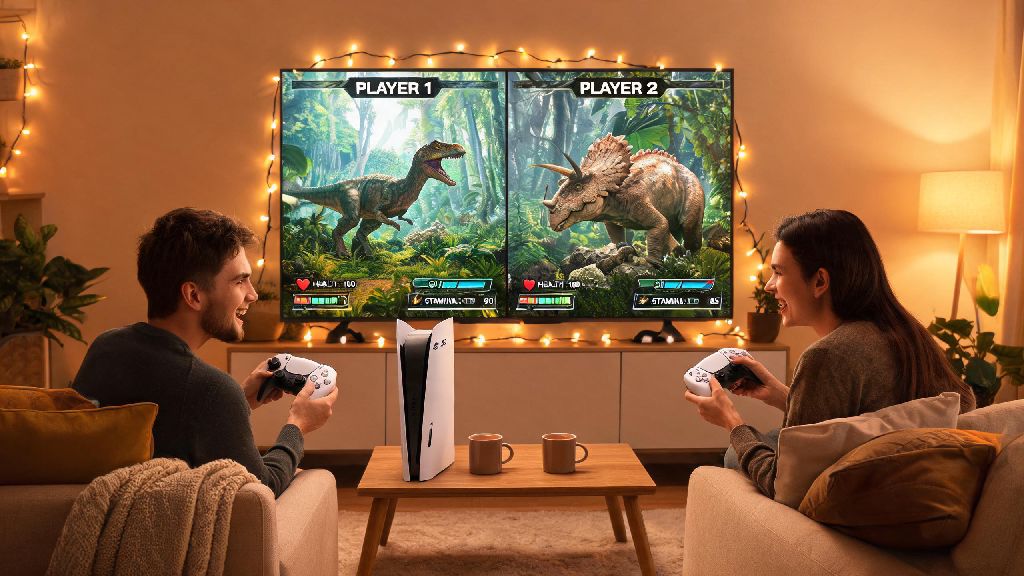
If you’ve ever grabbed a second controller ready to explore the dinosaur-infested world of Ark with a friend on your couch, you’ve probably asked: can 2 people play Ark on the same console? For years, split screen co-op has been one of the most requested features for casual players who don’t want to shell out for a second console or separate game copy to play with people in their home. I’ve tested this setup across PS5, Xbox Series X, and even older last-gen consoles to see what works, what breaks, and how to get the most out of local co-op sessions without the usual lag or glitches that come with split screen play. This guide breaks down exactly what you need to know, from compatible consoles to hidden settings that will make your shared playthrough way more fun.
Can 2 People Play Ark on the Same Console? Full Compatibility Breakdown
The short answer is yes, this setup works for almost all modern and last-gen consoles that support Ark, with only a small handful of exceptions. You don’t need a special version of the game, and you won’t have to pay for extra DLC to unlock split screen functionality. You only need one licensed copy of Ark to run split screen co-op on the same console, which is a huge win for players on a budget who want to play with people in their home.
Supported consoles include PS4, PS5, Xbox One, Xbox Series S/X, and Nintendo Switch. The Switch version has some notable performance limitations, though, so you’ll likely see more frame drops and lower render distance than on current-gen PlayStation or Xbox devices. If you’re playing on Xbox, you don’t need an Xbox Live Gold subscription for local split screen, but you will need it if you want to join online public servers while playing split screen with a second player. Guest profiles work for temporary play, but if the second player wants to save their own character progress across sessions, they’ll need to sign into their own unique console profile.
One common misconception is that you can run split screen on a dedicated server. That’s not the case, since dedicated servers are designed to run independently of active player sessions, so they don’t support local split screen input. You’ll need to run a single player save or a non-dedicated server to use same-console co-op, which we’ll cover more in the setup section.
Step-by-Step Split Screen Setup for Local Ark Co-op
Setup is far simpler than most players expect, and I’ve walked multiple first-time players through the process in less than two minutes during game nights. The steps are almost identical across all supported consoles, with only small differences in menu layout between PlayStation, Xbox, and Switch:
If you get an error when inviting the second player, the most common fix is to close all other apps running on your console first. Ark uses a huge amount of RAM to run its open world, and split screen needs extra processing power to render two separate views at once. Closing background apps like streaming services or other games will free up enough space for the split screen to load properly.
Make sure you’re not running a dedicated server if you want split screen play – I’ve seen dozens of players run into this issue when they accidentally launch a dedicated server instead of a non-dedicated one, and there’s no workaround for this limitation. If you want to play with other friends online while using split screen, you can join a public non-dedicated server with your split screen session, though performance will drop even more with extra players connected.
Key Limitations to Know Before Starting Your Shared Playthrough
Don’t go into split screen play expecting the same experience as playing solo or online with separate consoles. There are some tradeoffs you’ll have to work around, and knowing them ahead of time will save you a lot of frustration later on. First, your screen real estate is cut in half, so you’ll have a harder time spotting distant dinosaurs or small resources like berries or flint, especially if you’re playing on a smaller TV. I always recommend playing on a 40 inch or larger screen if possible, to avoid squinting at your half of the display for hours on end.
Second, there’s a hard tether limit between the two players. You can’t wander more than 200 to 300 meters away from the host player, or the game will automatically pull you back to the host’s location. That’s because the non-dedicated server runs off the host’s console, so it can only load terrain and assets close to the host’s current position. If you want to explore further apart, you’ll need to use separate consoles and connect to an online server, either public or private.
Third, performance will drop slightly even on high-end current-gen consoles. You can fix most frame drop issues by turning down view distance and shadow quality in the settings menu – I’ve found that dropping those two settings to medium gets rid of 90% of performance issues during split screen play. You also won’t be able to use most custom mods on console split screen, since mod support for console versions of Ark is extremely limited overall. If mod support is a priority for your playthrough, you’ll need to stick to PC play with separate devices.
Pro Tips for Smooth, Fun Same-Console Ark Co-op Sessions
I’ve hosted dozens of split screen Ark playthroughs with friends and family over the years, so I’ve picked up a few hacks to make the experience way less frustrating and way more enjoyable. First, assign roles early on to avoid wasting time arguing about what to do. One player can focus on gathering resources and building base structures, while the other handles taming dinosaurs and scouting for dangerous threats nearby. That plays to the split screen setup perfectly, since you don’t have to wander far apart to get both jobs done efficiently.
Save your game manually every 30 to 45 minutes – split screen play is slightly more prone to crashes than solo play, and the last thing you want is to lose hours of progress taming a high-level T-Rex or building your dream base because your console froze. Most consoles have quick save shortcuts you can use without even opening the menu, so it’s easy to make this a regular habit during play sessions.
Another helpful tip is to turn on the “shared map markers” setting in the gameplay menu, so both players can see each other’s marked locations for resources, base spots, and dangerous creatures. That cuts down on miscommunication a ton, and you won’t have to constantly yell across the couch to tell your friend where you found a high-level dinosaur or a cache of rare metal. If you want to make the experience even more immersive, you can turn on split screen horizontal orientation instead of vertical in the display settings – I find horizontal split is way easier to play on for most TV sizes, since it gives both players a wider field of view to spot threats.
If you end up wanting to add more players to your session later, you can hook up a second console and do cross-screen local co-op, but that requires two copies of the game and a local network connection. But for casual 2-player couch co-op, the same console setup works perfectly for most players, and it’s a great way to experience the game without the hassle of setting up online servers or paying for extra hardware.
At the end of the day, the answer to can 2 people play Ark on the same console is a resounding yes, as long as you have a supported console and adjust your expectations for the small limitations that come with split screen play. It’s perfect for casual game nights, playing with a partner or kid, or even just grinding through the early game with a friend without having to mess with online server settings or extra hardware. You don’t need any fancy extras to get started – just a second controller and a copy of Ark, and you’re ready to jump in and start exploring, taming, and surviving together. I’ve spent dozens of hours playing this way, and it’s still one of my favorite ways to experience the game, even with the small performance tradeoffs.